
Quick Summary
Access control integration with practice management software connects a clinic's door and entry hardware to its scheduling and patient records system. Once linked, appointments and staff roles can drive who is allowed through each door, removing double entry.
- Confirm your practice software and access vendor support a direct link before buying anything.
- Assign one source of truth per field; practice software usually owns staff status, roles and schedules.
- Use a unique staff ID as the join key to prevent orphaned or duplicate credentials.
- Keep patient codes short-lived, expiring a few minutes after each appointment ends.
- Run a daily reconciliation report to catch silent sync failures before they grant stale access.
Table of Contents
- What Access Control Integration With Practice Management Software Means
- Access Control System Fundamentals for Clinics
- Access Control Integration Requirements to Check First
- How Access Control Software API Integration Works
- Appointment-Based Access Control: Scenarios for Patients, Staff and Contractors
- Visitor Management System Integration and Privacy Boundaries
- Planning Your First Integration: Your Next Step
- Frequently Asked Questions
What Access Control Integration With Practice Management Software Means
Access control integration with practice management software is the connection between a clinic's door and entry hardware and the scheduling and patient records system that runs the day. When the two talk to each other, appointments can drive who is allowed through a door, and staff roles can follow them across the building.
Most small medical offices run these systems separately. The practice software holds the calendar and billing, while a keypad or badge reader holds its own list of who can enter. Someone then updates both lists by hand, which is where mistakes and forgotten cancellations creep in.
Integration aims to remove that double entry. It can also give the office a single record of who was granted access, when, and why. NIST guidance on access control and identity management
Access Control System Fundamentals for Clinics
An access control system decides who can open which door at what time. It usually has three parts: credentials (a badge, fob, PIN or phone), readers and locks at each door, and a controller or cloud service that stores the rules.
For a clinic, the rules are the important part. Staff, patients, vendors and cleaning crews need different permissions. A medical assistant may need the exam wing all day, while a delivery driver needs only the loading door during set hours.
Cloud-based systems are generally easier to manage across several sites and can be updated remotely. To compare options for a small medical office, read how to choose the right access control system for a clinic. Server-based systems keep data on premises, which some offices prefer for control. Either way, the system should keep an audit trail so the office can see who opened what.
Access Control Integration Requirements to Check First
Before you buy anything, confirm that the two systems can actually exchange data. Compatibility is the first question, and many small practice platforms do not offer a direct link to door hardware.
Check these items before you commit:
- Supported integrations: Does the access vendor list your practice software as a supported connection?
- Data you need to sync: Staff names, roles, schedules, and status (active or terminated) are the minimum.
- Credential management: Who issues, revokes and reprints badges, and how quickly?
- Hardware compatibility: Existing readers and locks may need upgrades or controller changes.
- Security and privacy: Patient data should not be exposed through the door system, so limit what is shared.
- Implementation cost: Include installation, licensing and any ongoing integration fees, not only the hardware price.
Ask any vendor for the requirements in writing, including the system requirements and the data fields they exchange. For a closer look at door types and hardware before you commit, see commercial door lock types and installation. For a quote on the locks, readers or door work at your clinic, contact Abra Key Dabra Locksmith Services.
How Access Control Software API Integration Works
Many modern integrations use an API (application programming interface). The practice software sends a request to the access control platform when something changes, such as a new hire, a shift change, or a cancelled contract. The access platform then updates the matching credential. The API is only the transport; the design work is deciding what data moves, which system owns each field, and how the office finds out when a sync breaks.
Four integration patterns and when each fits
- Direct API (push): The practice system calls the access platform's REST endpoint the moment a record changes. Fastest propagation, typically seconds. Requires the practice vendor to expose webhooks or outbound calls, which many small platforms do not.
- Webhook (event-driven): The practice system posts an event to a URL you control when a staff record, appointment, or status changes. Good for near-real-time updates without polling. Needs an endpoint that can receive and retry failed deliveries.
- Middleware / iPaaS: A third-party connector (for example, an integration platform or a managed connector service) sits between the two systems, translates fields, and handles retries and logging. Best when neither vendor offers a native link, but adds a subscription and a vendor to manage.
- Scheduled pull (batch): The access system queries the practice system every few minutes or hourly. Simplest to stand up and easiest to audit, but revocation lags by one cycle, a terminated employee may keep working access until the next run.
A common pattern in small clinics is a hybrid: push for staff status changes (hire, termination) and pull for schedule and appointment data, because schedules change more often and a few minutes of lag is acceptable.
Example field mapping
Map fields explicitly and write the mapping down. A workable starting set:
| Practice software field | Access control field | Source of truth | Sync direction |
|---|---|---|---|
| Staff ID (unique) | Cardholder / credential ID | Practice software | Practice → Access |
| Employment status (active/terminated) | Credential active flag | Practice software | Practice → Access |
| Role / job title | Access group | Practice software | Practice → Access |
| Shift start / end | Schedule-based access window | Practice software | Practice → Access |
| Appointment start / end | Temporary visitor credential window | Practice software | Practice → Access |
| Door / reader assignment | Access level | Access control | Access only |
| Badge number | Credential number | Access control | Access only |
The unique staff ID is the join key. Without a stable identifier, name changes and duplicate records will create orphaned credentials. If the practice software has no unique staff ID, use a composite of last name plus hire date, and reconcile monthly.
Choosing the source of truth
Decide per field, not per system. Staff status, role, and schedule should be owned by the practice software because that is where HR and scheduling already live. Door assignments, reader groups, and badge numbers belong to the access system because the practice software has no concept of a door. Never let both systems edit the same field, that is how a terminated employee gets reactivated by a well-meaning office manager.
Sync cadence and failure handling
Set a cadence you can defend. Termination should propagate within minutes, not hours. A practical target is under five minutes for status changes and under fifteen minutes for schedule changes. Log every request and response on both ends, and alert the office when a sync fails more than twice in a row.
Watch out: a silent sync failure is worse than no integration, because staff trust the badge reader to reflect the practice software and stop checking manually. Build a daily reconciliation report that lists credentials active in the access system but not active in the practice software, and review it before opening.
NIST guidance on access control and identity management
Appointment-Based Access Control: Scenarios for Patients, Staff and Contractors
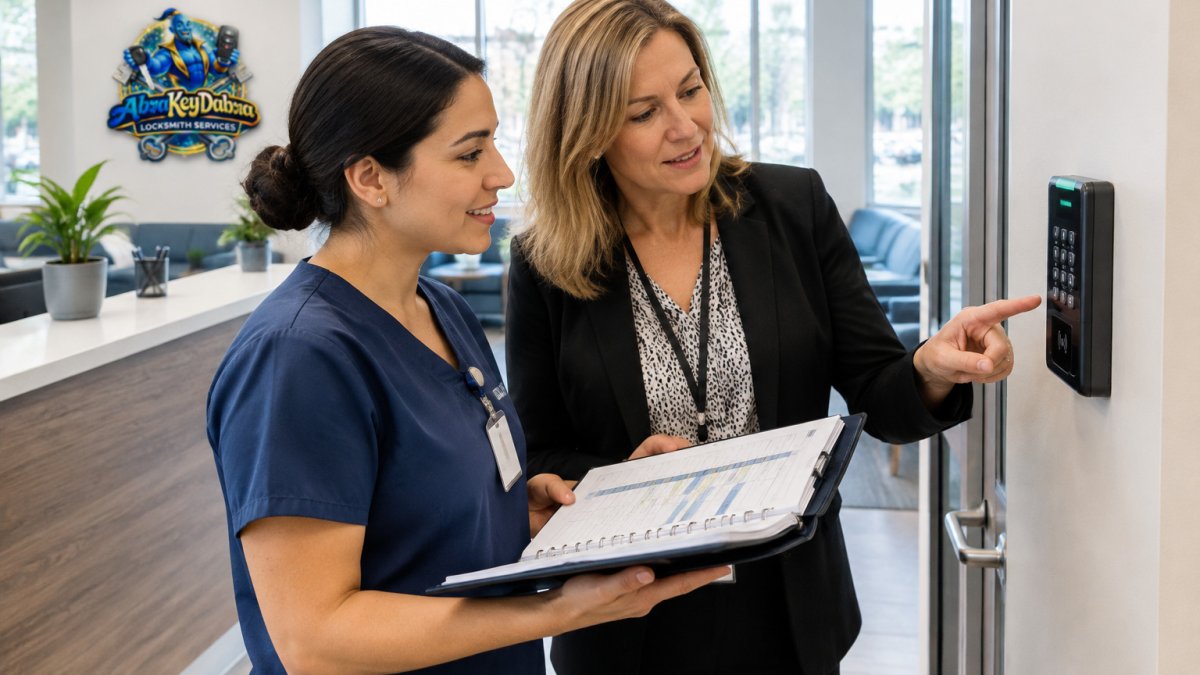
Appointment-based access is where integration becomes practical for a clinic. The goal is to let the practice software, which already knows who is scheduled, when, and for what, drive the door permissions, so the front desk is not issuing and chasing temporary codes by hand. The scenarios below are the ones that come up most often in small and mid-size practices.
A role matrix you can adapt
| Person type | Access scope | Duration | Source of truth | Revocation trigger |
|---|---|---|---|---|
| Clinician | Exam wing, records room, staff entrance | Recurring, tied to shift | Practice schedule | Shift end or termination |
| Front desk | Lobby, reception, staff entrance | Recurring, tied to shift | Practice schedule | Shift end or termination |
| Medical assistant | Exam wing, supply room | Recurring, tied to shift | Practice schedule | Shift end or termination |
| Patient (scheduled) | Main entrance, waiting area, assigned exam room | Appointment window plus a small buffer | Appointment record | Appointment end or cancellation |
| Contractor / vendor | One mechanical or delivery door | Single window, set in advance | Work order or manual entry | Window expiry |
| Cleaning crew | Whole suite, after hours | Recurring, overnight window | Contract schedule | Contract end |
Provisioning sequence for a scheduled patient
- Appointment is booked in the practice software.
- Integration creates a temporary credential or one-time code tied to that appointment ID.
- Credential activates a short buffer before the appointment (five to fifteen minutes is typical) and expires a short buffer after.
- If the appointment is cancelled or rescheduled, the credential is revoked or reissued automatically.
- Access event is logged against the appointment ID, not the patient's clinical record.
Keep the buffer small. A code that works all day defeats the purpose, and a code that expires the moment the appointment ends locks out patients who arrive late.
Staff access tied to shifts
Staff access should follow the schedule, not the badge. When a shift changes in the practice software, the door permissions update to match. Two rules matter: terminated staff must lose access within the sync window (see the API section above), and role changes must move the person between access groups, not just add a new group. A medical assistant promoted to clinician should not keep the old group's permissions by default.
Contractor and vendor access
Contractors need the narrowest access and the shortest window. An HVAC technician may need one mechanical room for a single afternoon. Set that window in advance, tie it to a work order number, and let it expire automatically. Do not issue a reusable code to a contractor who visits quarterly, issue a new one each visit and log it.
Common mistakes
- Leaving old contractor credentials active after the job closes.
- Giving every staff member the same access level because the group setup is tedious.
- Issuing patient codes that work on staff doors.
- Forgetting to revoke access when an appointment is cancelled rather than completed.
Review temporary access lists every month, and remove what is no longer in use. A short monthly review catches most of the drift.
Watch out: if the practice software and the access system disagree about whether an appointment is still active, default to denying access and requiring front-desk override, rather than granting access on stale data.
Visitor Management System Integration and Privacy Boundaries
Visitor management systems record who signs in, whom they are visiting, and how long they stay. Connecting them to the practice software can speed up check-in, since a preregistered visitor's details already exist in the system.
Privacy limits matter here. A visitor log should record a name and a host, not a patient's diagnosis or the reason for the visit. Keep clinical information out of any system connected to the doors or the lobby kiosk.
Some clinics also use video surveillance or alarm systems. Those can share a unified platform, but patient-facing screens and camera feeds should be kept separate from anything that displays records. Check your state's privacy expectations and your own compliance obligations before linking these systems.
Planning Your First Integration: Your Next Step
Start small. Pick one door, such as the main entrance or the records room, and integrate only the staff roles tied to it. Test the sync for two weeks before you expand. Watch for failed updates and confirm that terminated staff lose access within the expected time.
Keep a written record of which system owns each data field, who can override access, and how to revoke credentials in an emergency. That document will matter most on the day something goes wrong.
If you want help with the door hardware or the door work at your clinic, get a quote from Abra Key Dabra Locksmith Services for your entry points.
Frequently Asked Questions
Can access control systems integrate with practice management software?
Yes, many access control platforms can connect to practice management software through an API or a vendor-built connector. The practice software typically supplies appointment, staff or patient-visit data, and the access system uses it to create, time-limit or revoke credentials. Whether a specific pairing works depends on the products involved, so confirm supported integrations and the required API access with each vendor before purchasing. Ask for written documentation of data fields, sync frequency and how failed syncs are reported.
What information can practice management software share with an access control system?
Integrations usually share only the data needed to grant access: a person's name or identifier, the appointment date and time, the assigned room or area, and the status of the visit. Clinical details, diagnoses and billing information should not be sent to an access system. Limiting the data fields protects patient privacy and reduces compliance risk. Review the field mapping with your privacy officer before enabling any sync, and confirm it matches your HIPAA obligations and internal policies.
How can a business protect patient information when integrating access control systems?
Start with data minimization: map only the fields the access system needs, and exclude clinical content. Use role-based permissions so staff can only see the credential and visit records relevant to their job. Require encrypted connections for the API, enable audit trails so every grant and revocation is logged, and review vendor business associate agreements where protected health information could be involved. Test the integration with dummy records before live use.
